KIOZI · GUIDES
Your guide to
a great first order.
Kiozi works on Android tablets and iPad (iOS/iPadOS). Connect Square, make your kiosk your own, and let guests order at their pace.
Start with setup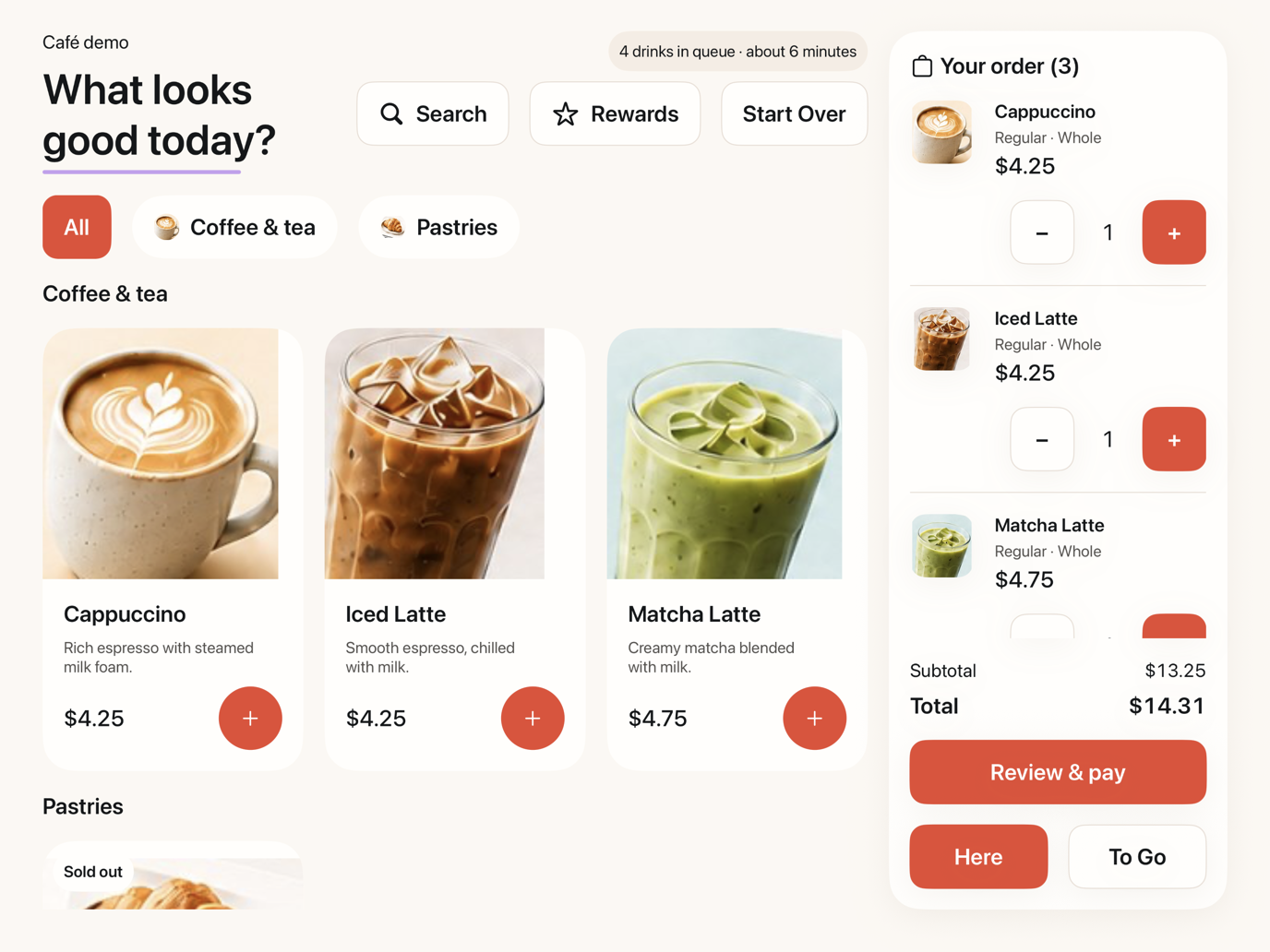
01 · GET STARTED
Set up your kiosk.
Have a compatible tablet, an internet connection, your Square merchant account, and a compatible Square reader ready. Contact us for current installation instructions for your Android tablet or iPad.
Sign in and connect Square
Open Kiozi and sign in with your staff phone number and verification code. Choose Square and authorize the connection on Square’s sign-in page.
Select your location
In Settings, choose the Square location this kiosk will serve. Review the menu and settings before opening the kiosk to guests.
Prepare your reader and preferences
Set up your compatible Square reader and check that it is ready for payment. Review your menu, order types, skin, and other kiosk settings.
Choose Start Kiosk
Once setup is complete, choose Start Kiosk to open the customer experience. Selecting a location alone does not start the kiosk.
The same core ordering flow runs on Android and iPad. Screen layouts and available skins depend on your device and orientation.
03 · ORDERING WITH KIOZI
From browsing to confirmation.
Browse & customize
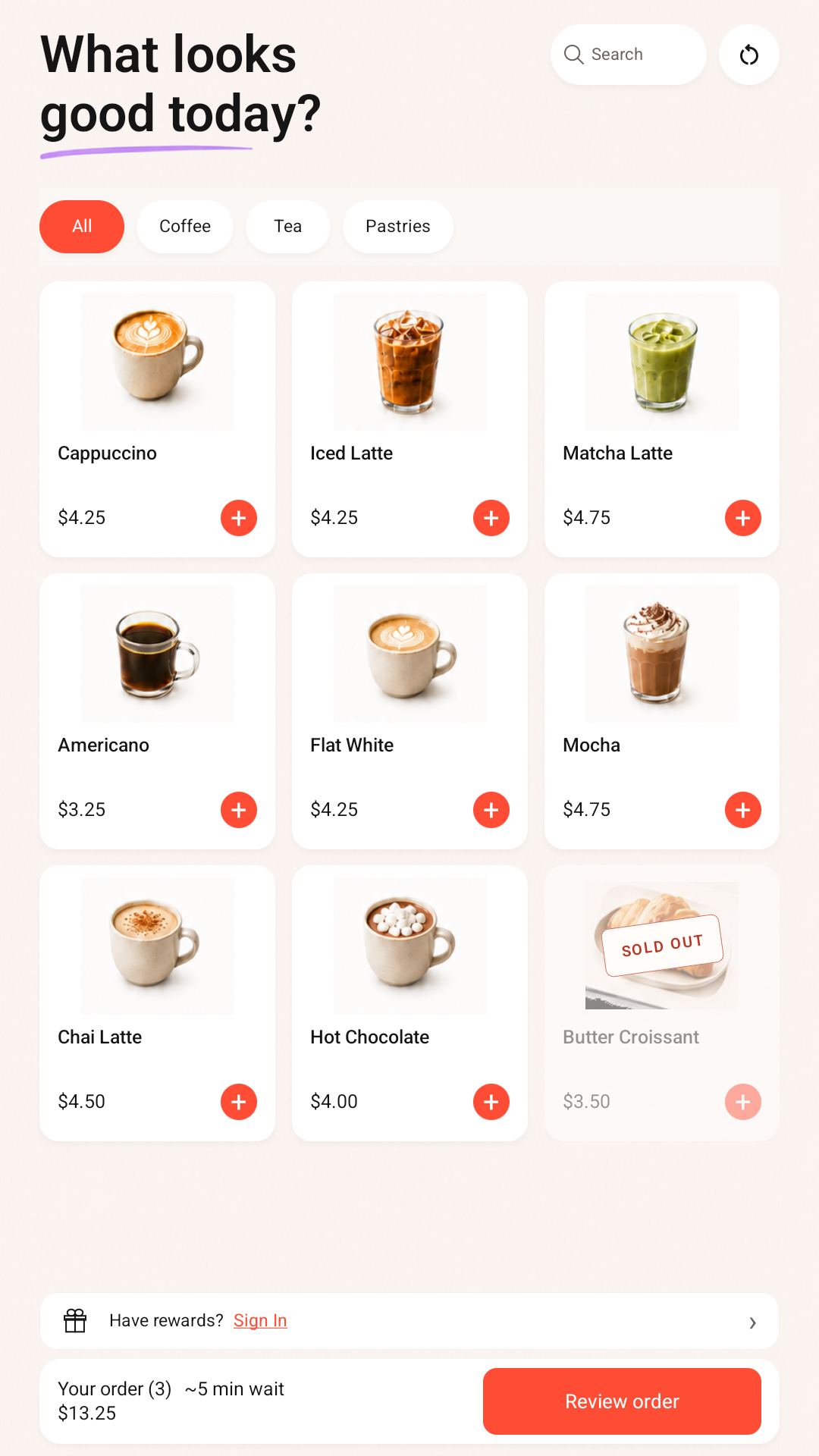
Guests explore categories or search, choose an item, select its options, and add it to their order.
Review & check out
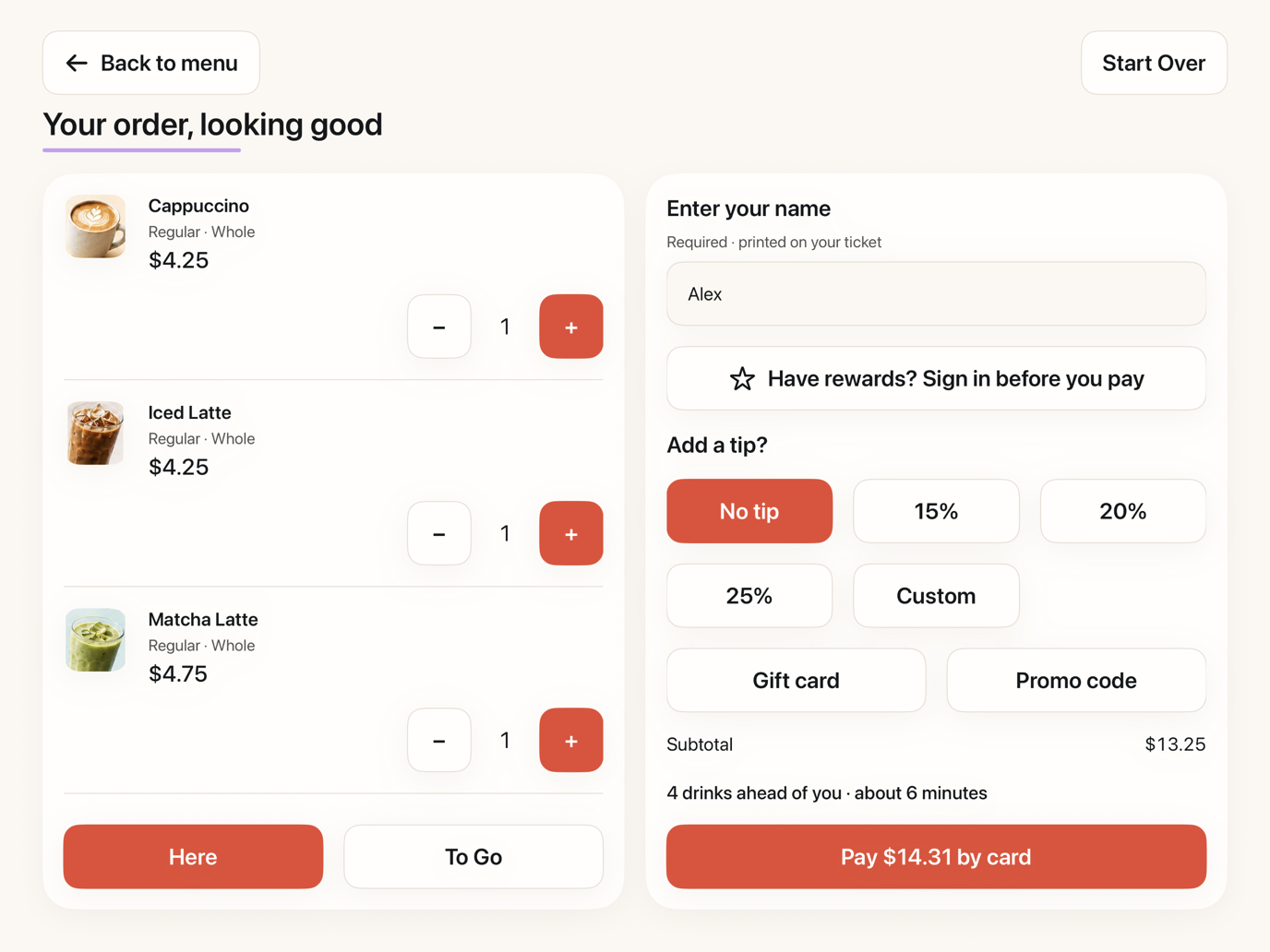
They review quantities and totals, then complete the checkout options you’ve enabled. Rewards, gift cards, and promo codes depend on your configuration.
Pay & collect
Guests follow the payment prompts. After the order is confirmed, it goes to the connected Square location for your team to prepare.
04 · MAKE IT YOURS
Choose a skin that fits your business.
Start with the included free skin. Browse available designs in the Skin Store and choose a skin compatible with your kiosk. Apply it to the intended kiosk or location using the available appearance controls.
Your eligible free month includes temporary access to released trial skins. Purchased or granted skins remain available afterward; trial-only access returns to the free skin.
Customizable skins start at $99 USD. See the previews and skin options →
05 · KEEP THINGS RUNNING
A few checks before service.
- Confirm the tablet has power and an internet connection.
- Check the correct Square location and review current menu availability.
- Check reader readiness before accepting card payments.
- Review your trial dates, service notices, and billing in your merchant account.
The reader is disconnected. What should I do?
Check that the reader is powered and nearby, then follow Kiozi’s reader connection prompts. Resume card payments when the reader reports that it is ready. If the issue continues, contact Kiozi support.
A payment result is unclear. Should I try again?
Let Kiozi finish checking the payment status. Check the order and payment in Square before attempting another charge. Contact support if the result remains unresolved.
Can I use another POS?
Square is currently supported. More POS integrations are planned. See our integrations page to learn more or request your POS.
Need help with your setup? Talk to Kiozi →